
Every Datalab pipeline starts with the same question: which mode? Our modes range from $0.50 to $10 per 1,000 pages, and the ones that read hard pages best are also the slowest. The honest answer has always been “it depends on your documents”, which is true and not very useful.
Benchmarks don’t settle it either. OmniParseBench tells you which parser is best on 2,937 pages that we picked. It can’t tell you whether Balanced is good enough for your insurance forms, or whether the extra $6 per 1,000 pages buys anything on your scanned contracts.
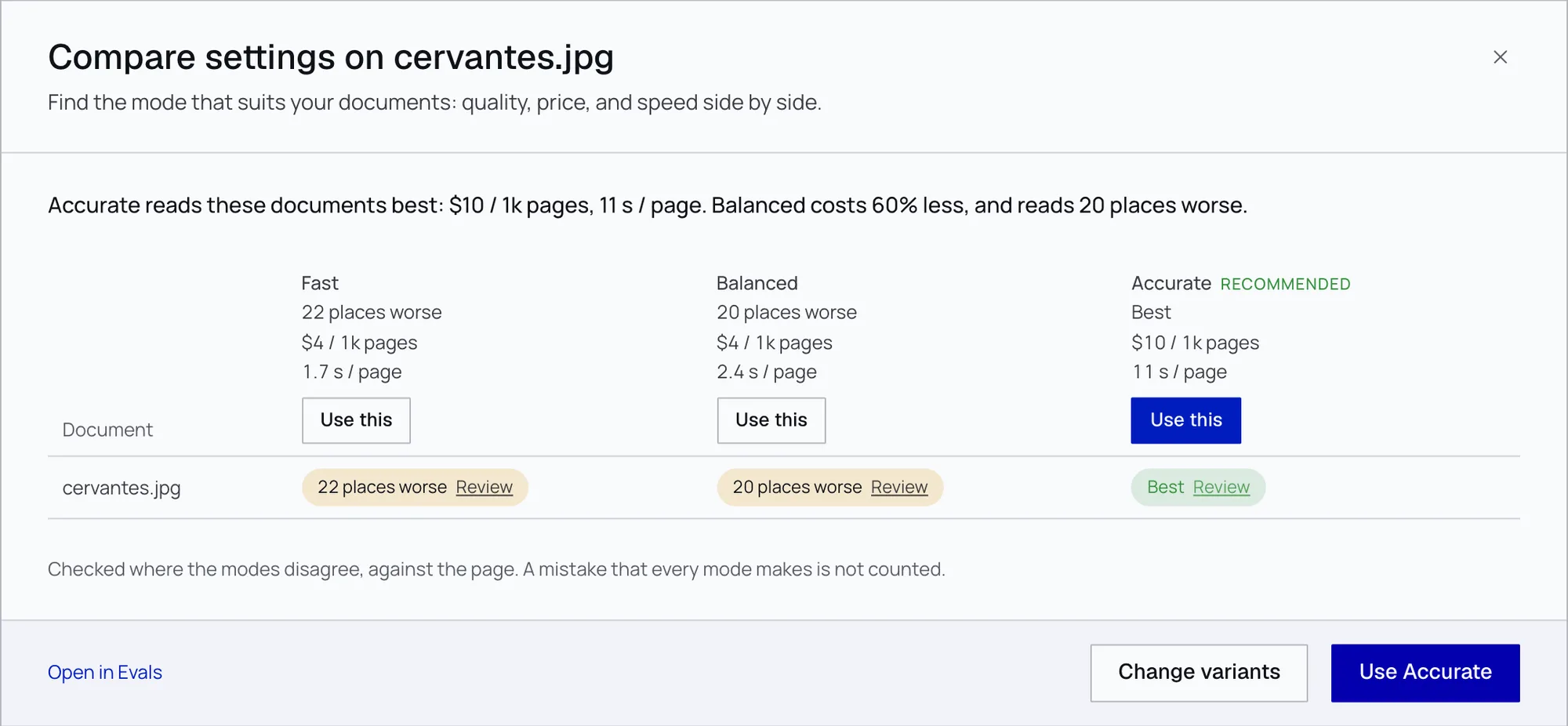
Evals answers that question on your documents. Pick a few documents and the modes to try, and click Compare. It runs each mode, finds every place where they read the page differently, checks each place against the page, and names the mode to use:
See every place a mode gets it wrong
A recommendation is only useful if you can check it. Click any cell, and you get the page with a box on every place where the modes disagree. The boxes are word-level, so each one lands on the exact words. A place that wraps onto the next line gets a box on each line.
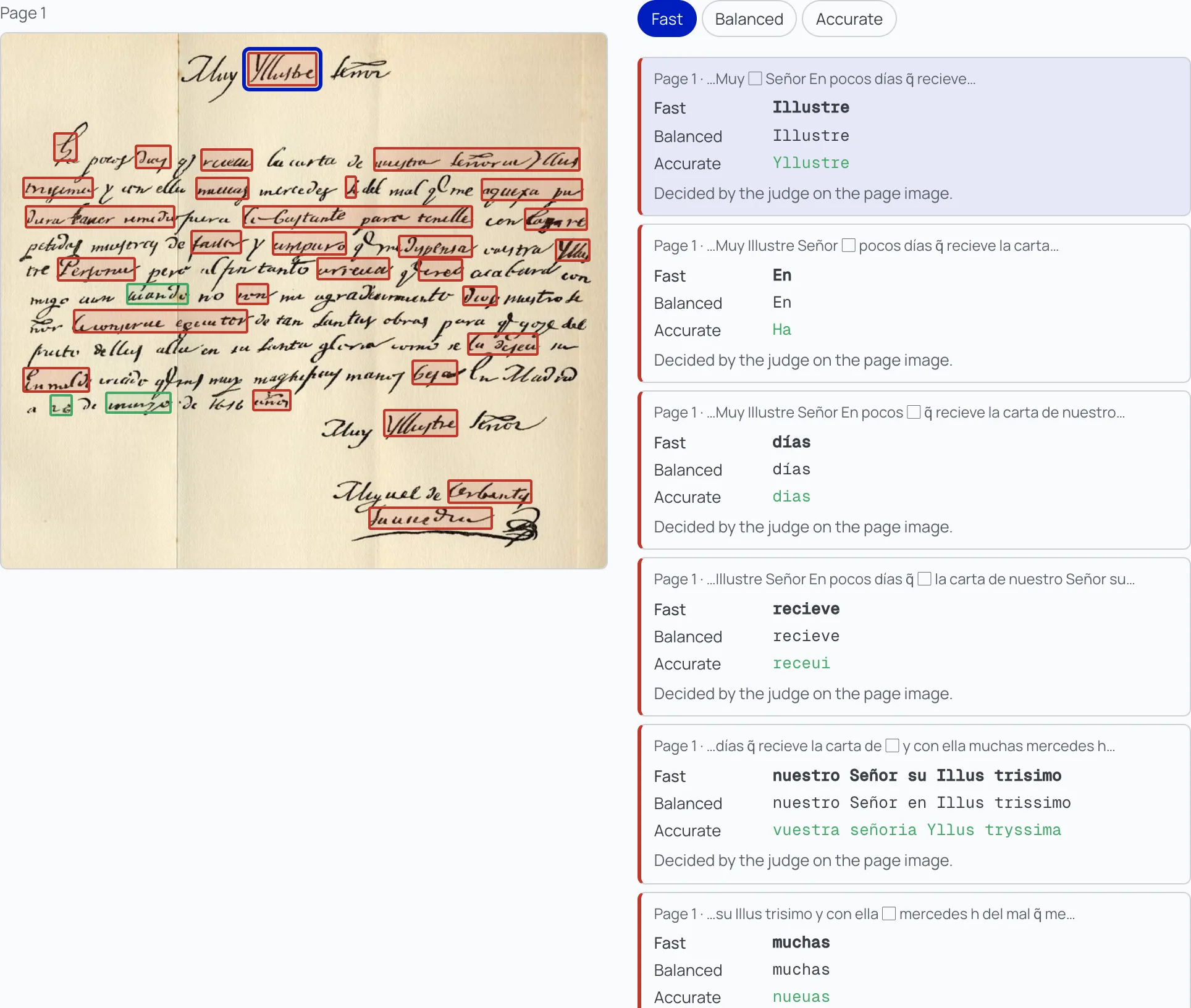
Each place in the list shows every mode’s reading, which one won, and what decided it: the PDF’s text layer or a vision model reading the page. A tab per mode switches the view, so you can see what Balanced gets wrong that Accurate doesn’t, and the other way around.
On the 1616 letter, Fast reads “En pocos días” where Accurate reads “Ha pocos dias”. That’s two places, and the page shows which reading is right.
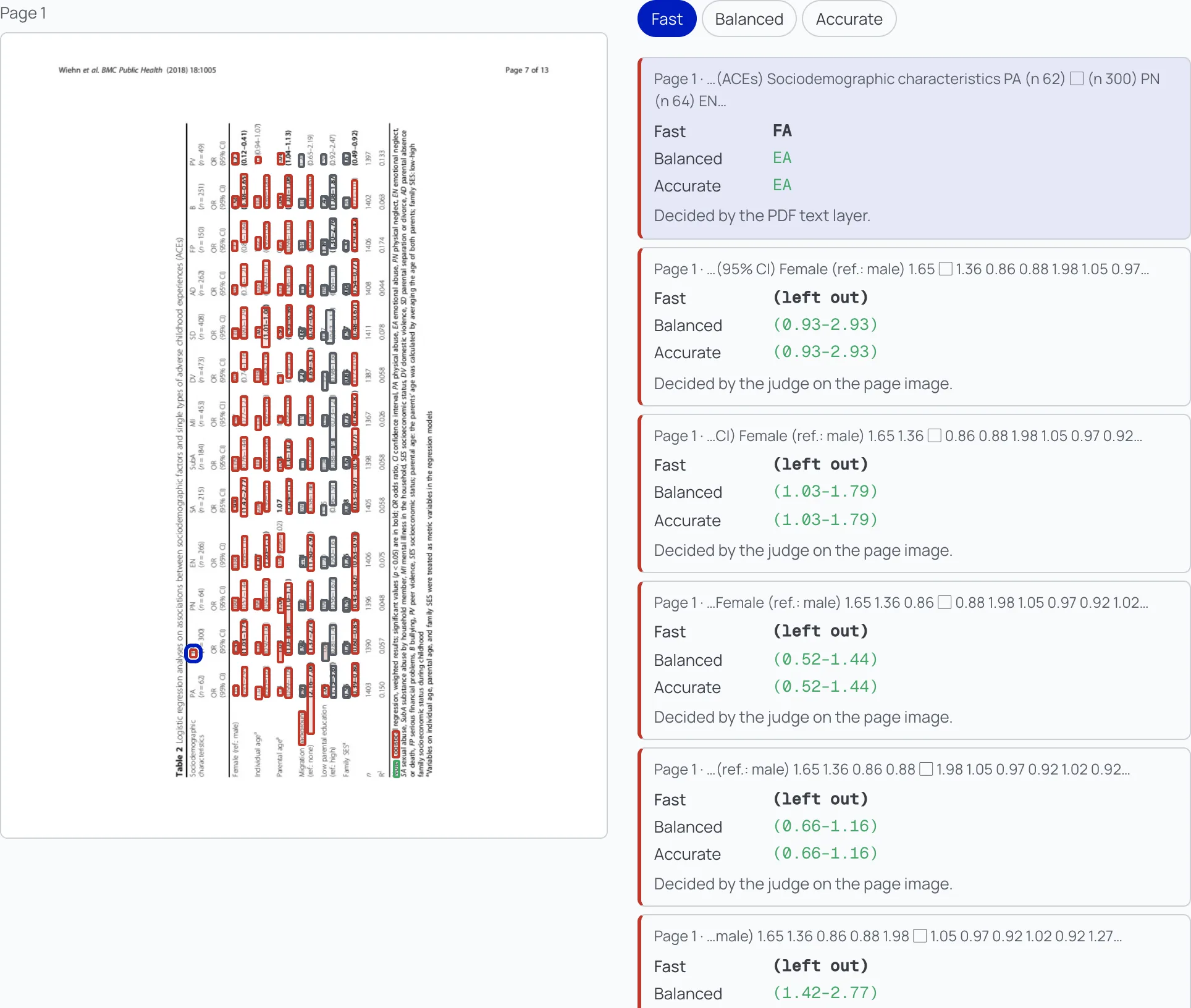
Digital PDFs work the same way. On a rotated results table from a PubMed Central paper, Fast drops the confidence intervals, like (0.93–2.93), that Balanced and Accurate keep. Where the modes read a column heading differently, the PDF’s text layer settles it.
What it checks
Words aren’t the only thing a mode can get wrong, so Evals runs the same families of checks that OmniParseBench uses:
| Check | What it catches | Like OmniParseBench’s |
|---|---|---|
| Text | a word or number read differently, dropped or added | present and repeat tests |
| Tables | a value under the wrong row or column heading, a wrong span, a table written as plain text | table_cell tests |
| Formatting | a heading or term that one mode makes bold or italic and another doesn’t | format checks |
| Checkboxes | ☐ read as ☒, or a box left out | form checks |
| Page breaks | a table across two pages that comes out as two tables | — |
A few of these need care to avoid false alarms. Two modes can write the same equation in different LaTeX (\le or \leq, \dfrac or \frac), so equations are put in one form before comparing. Two modes can also read the blocks of a page in a different order, like two columns or two articles. A word-by-word comparison would turn one moved paragraph into dozens of unrelated “differences”. So each mode’s text is first rebuilt in one block order, using the block boxes in its JSON output. The words inside each block don’t move, so a misread word still counts.
Things that are a matter of style don’t count: case, whitespace, markdown syntax, punctuation around a word, the page number.
You can compare two to four settings at once. Choose the mode (Fast, Balanced or Accurate) and Merge across pages, which decides whether a table that crosses a page break comes out as one table.
How to use it
- Open Compare from a pipeline. In Forge, add a few of your documents to a Convert pipeline, then click Compare beside Run.
- Pick what to compare. Fast, Balanced and Accurate are filled in. Remove a mode if you don’t need it, and choose Merge across pages per variant. The footer shows the cost before you run.
- Read the answer. The first line names the mode to use and the trade-off (“Balanced costs 60% less, and reads 20 places worse”). Each mode gets a column with how it reads against the best mode, its price per 1,000 pages, and its measured seconds per page.
- Check the evidence. Click a cell to review the pages, with a box on every place the modes disagree.
- Use the mode. Click Use this, and the pipeline switches to that mode.
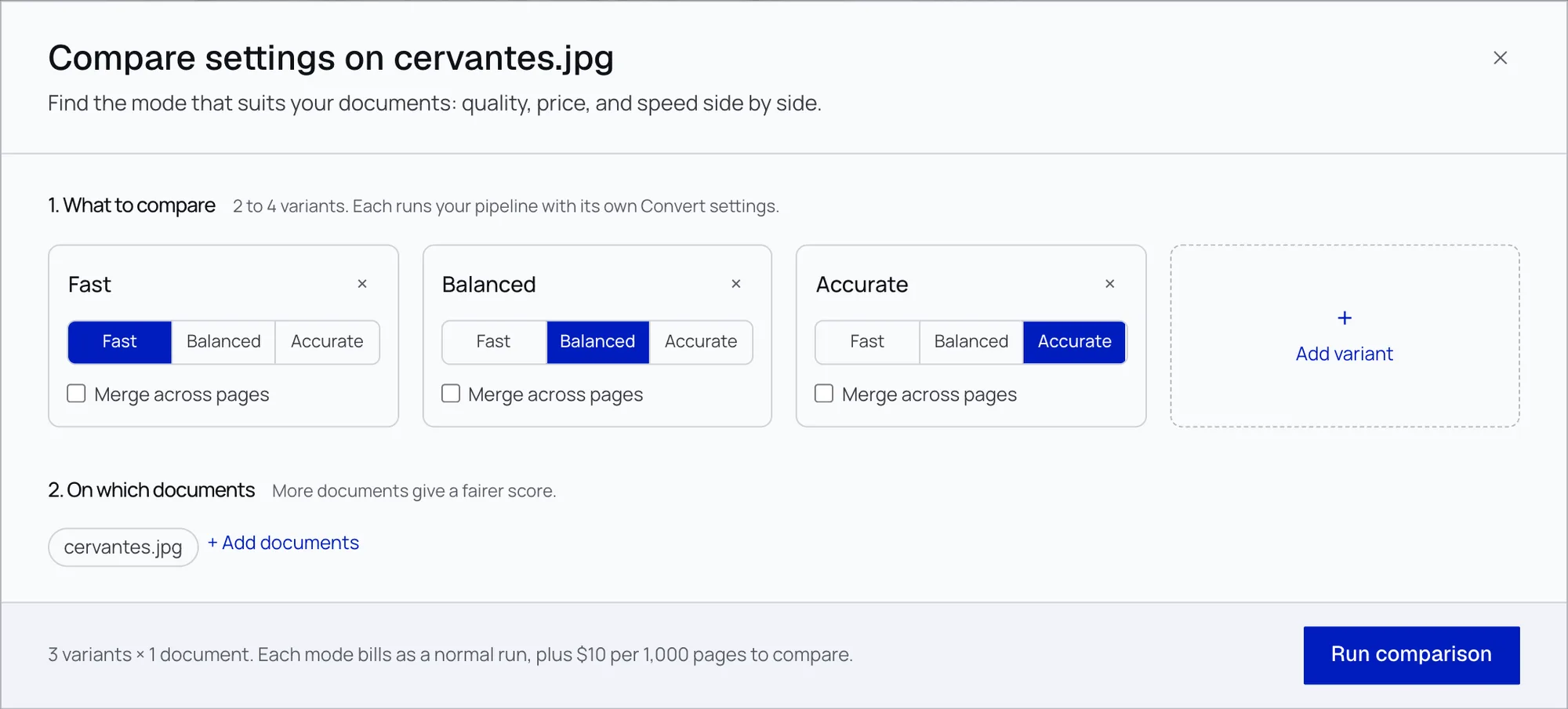
Each mode runs at its normal price. The comparison itself costs $10 per 1,000 pages.
To compare on a larger sample, put your documents in a Collection and run Compare on it: every document in the Collection goes through every mode. Every comparison is saved under Evals in the sidebar, so you can come back to it later.
Pick a handful of documents that look like your real traffic, including the ugly ones: the faxed form, the phone photo, the table that spans two pages. That’s where the modes differ most.
How it decides
Evals doesn’t grade each output on its own. Ask a model “is this a good transcription of the page?” and you get a number that drifts from run to run, and small differences between modes get lost in the noise. We also tried having a model write tests for each page up front. On new scanned and handwritten pages, those tests caught 0 to 6 of about 20 real errors per kind that OmniParseBench’s tests catch. A model that can write a test about the hard part of a page could also read that part correctly, so the tests only covered what every mode already got right.
So Evals asks a narrower question: where do the modes disagree, and which reading matches the page?
- Code lines up the words of every mode’s output, page by page, and lists each place where at least one mode reads something different.
- Each place gets a verdict. When the page has a text layer, the reading that matches it wins. It’s exact and free, and the text layer’s fonts decide bold and italic the same way. Scans and photos have no text layer, so a vision model, the judge, reads the page image and picks the matching reading, or says “none of them” or “unclear”. It sees every open place on the page in one call, with the options shuffled. It answers questions like “Does the page say Illustre or Yllustre?”, which is much easier to get right than grading a whole transcription.
- Each mode gets the places it read wrong where another mode read the page right. The best mode shows “Best”, and every other mode shows how many places it reads worse. “Unclear” places don’t count.
The numbers are relative on purpose. If every mode misreads the same word, Evals can’t see it, and it doesn’t pretend to. You’re choosing between modes, and a mistake they all share doesn’t change the choice.
Why you can trust it
A tool that recommends a mode has to be right, so we checked each part against data with known answers.
The most direct test is to run Evals where we already know the answer. OmniParseBench has published outputs and pass/fail verdicts for Datalab Accurate and Balanced. On 214 of its 2,937 pages, the two modes get at least one test verdict different. We ran the production Evals on 137 of those pages, a fixed sample of digital PDFs and scans, with a few handwritten pages, and asked two questions.
First, place by place: when one of the benchmark’s text or table tests separates the two modes, and it lands on a place that Evals decided, does Evals pick the same mode? It does in 151 of 174 cases (87%).
Second, page by page: does the mode with fewer places worse on the page match the mode that passes more of the benchmark’s tests there? It does on 91 of 121 pages (75%), on both scanned pages judged from the image (25 of 32) and pages with a text layer (66 of 89). The agreement grows with the size of the gap. When one mode wins the benchmark’s tests on a page by a single test, Evals agrees 64% of the time (37 of 58). By three tests or more, it agrees 91% of the time (30 of 33).
Where the two disagree, they’re usually measuring different things. On one PubMed Central page, the benchmark has two table-cell tests, and Balanced passes both. Evals found 48 other numbers on the page that Balanced drops, each one decided by the PDF’s text layer. The benchmark checks a few facts per page, chosen and verified in advance. Evals checks every word where the modes differ.
We picked the judge on hard pages, not easy ones. On the 1616 Cervantes letter, we checked 25 places by eye and ran each candidate vision model four times with the production prompt. The model we use was right on 21 to 23 of the 25 places. The other candidates ranged from 5 to 23, and the weakest ones failed in the same way: they fixed the page. A judge that picks “días” because that’s the modern spelling, when the page says “dias”, rewards the mode that modernizes, not the one that reads. We chose the model that was most faithful to the page as written.
We tried giving the judge a crop of each place instead of the whole page. In a separate set of runs on the same 25 places, crops were worse: 19 to 21 right, against 23 to 24 for the whole page, at 12 times the input tokens. The judge needs the context of the line and the hand.
We also checked the table and formatting checks on their own. We ran the table check on 310 OmniParseBench pages, Accurate against Balanced, and compared it with the benchmark’s own table_cell tests. The check flagged 17 of the 27 pages where the benchmark’s tests disagree between the two modes. On those pages, the judge picked the same winner as the benchmark on 12–13 of 17 over three seeds. Every page where they disagreed was a span that the page itself shows either way, like a heading centered over three columns that the source data spans over two. Two different vision models agree on 92% of the table differences.
On 785 pages with OmniParseBench format tests, the check found 41 of the 57 tests where Accurate and Balanced disagree. Where the PDF’s fonts decided, they agreed with the benchmark every time (14 of 14).
Evals has limits, and we’d rather you know them:
- A mistake that every mode makes doesn’t count. Evals tells you which mode is better, not how good the best one is.
- The judge is a model. Its typical mistake is to “correct” a typo that is printed on the page.
- A scanned page that already has an OCR text layer is treated like a digital page, so that layer’s errors decide its places.