 Talk to Sales
 Benchmarks
View scores and output across OCR models spanning many document categories.
Want to run these evals on your own documents?
Talk to Sales Page 1 of 1
CHAPTER 5 Photoshop 商业调色技术
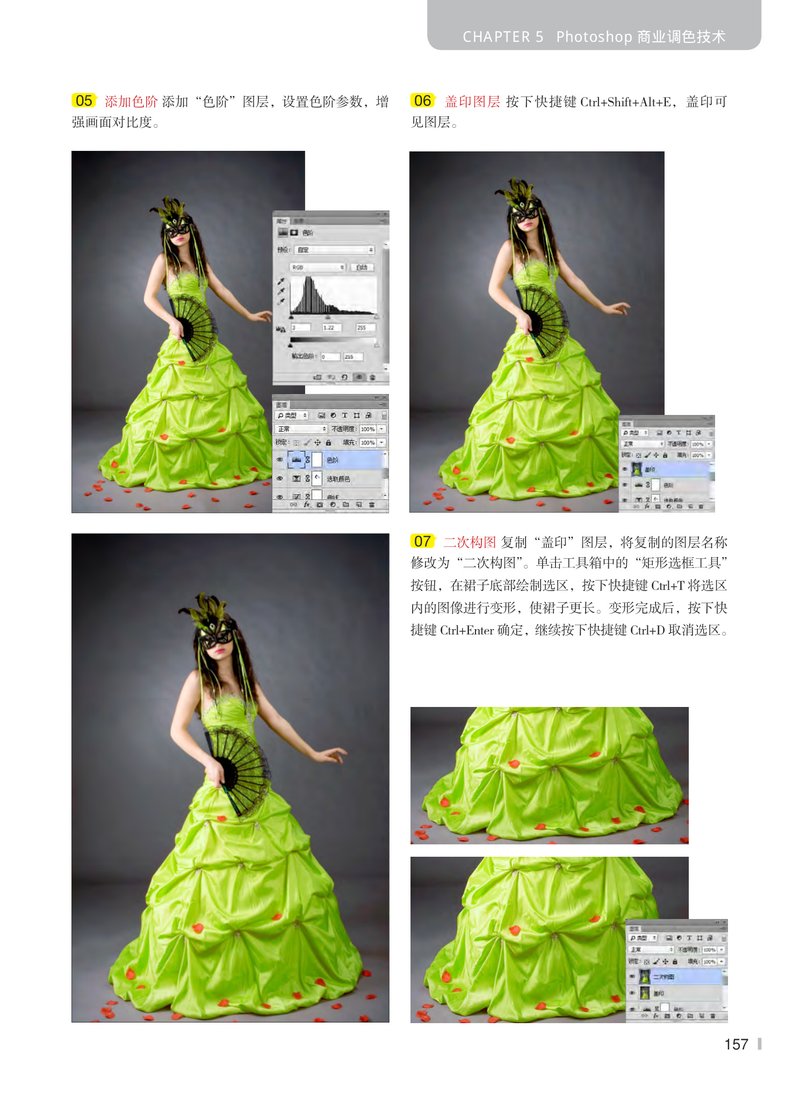
05 添加色阶 添加“色阶”图层,设置色阶参数,增强画面对比度。

A woman in a green dress and mask, with Photoshop's Levels adjustment panel open, showing the histogram and input/output sliders adjusted to enhance contrast.
06 盖印图层 按下快捷键 Ctrl+Shift+Alt+E,盖印可见图层。

A woman in a green dress and mask, with Photoshop's Layers panel open, showing the '盖印' (Merge Visible) layer selected.
07 二次构图 复制“盖印”图层,将复制的图层名称修改为“二次构图”。单击工具箱中的“矩形选框工具”按钮,在裙子底部绘制选区,按下快捷键 Ctrl+T 将选区内的图像进行变形,使裙子更长。变形完成后,按下快捷键 Ctrl+Enter 确定,继续按下快捷键 Ctrl+D 取消选区。

A woman in a green dress and mask, showing the final result of the secondary composition adjustment.

A close-up of the green dress, showing the result of the secondary composition adjustment.

A close-up of the green dress, showing the Photoshop Layers panel with the '二次构图' (Secondary Composition) layer selected.
157